

Organizations
Members & roles
Invite people, assign roles, manage seats and remove members
Roles
| Role | Organization memory | Can administer |
|---|---|---|
| Owner | Read; write through organization write mode | Yes — everything, including choosing the organization’s graph. The owner can’t leave the organization or be removed. |
| Org admin | Read; write through organization write mode | Yes — invitations, members, seats, skills, provider connections, settings. |
| Org user | Read | No. |
Every role gets the organization’s memory with their own on every recall.
Invite members
Send the invitation
On Org → Billing, enter the person's email and choose Org user (default) or Org admin.
They accept
The invitee gets an email with a link. Someone without an account signs up from the link; someone who already has one sees the invitation under Account → Settings and accepts it there.
- Invitations expire after 14 days.
- You can resend a pending invitation (once a minute) or delete it.
- An organization can have up to 100 pending invitations.
- Your organization’s memory graph must be chosen before you can invite anyone.
Seats
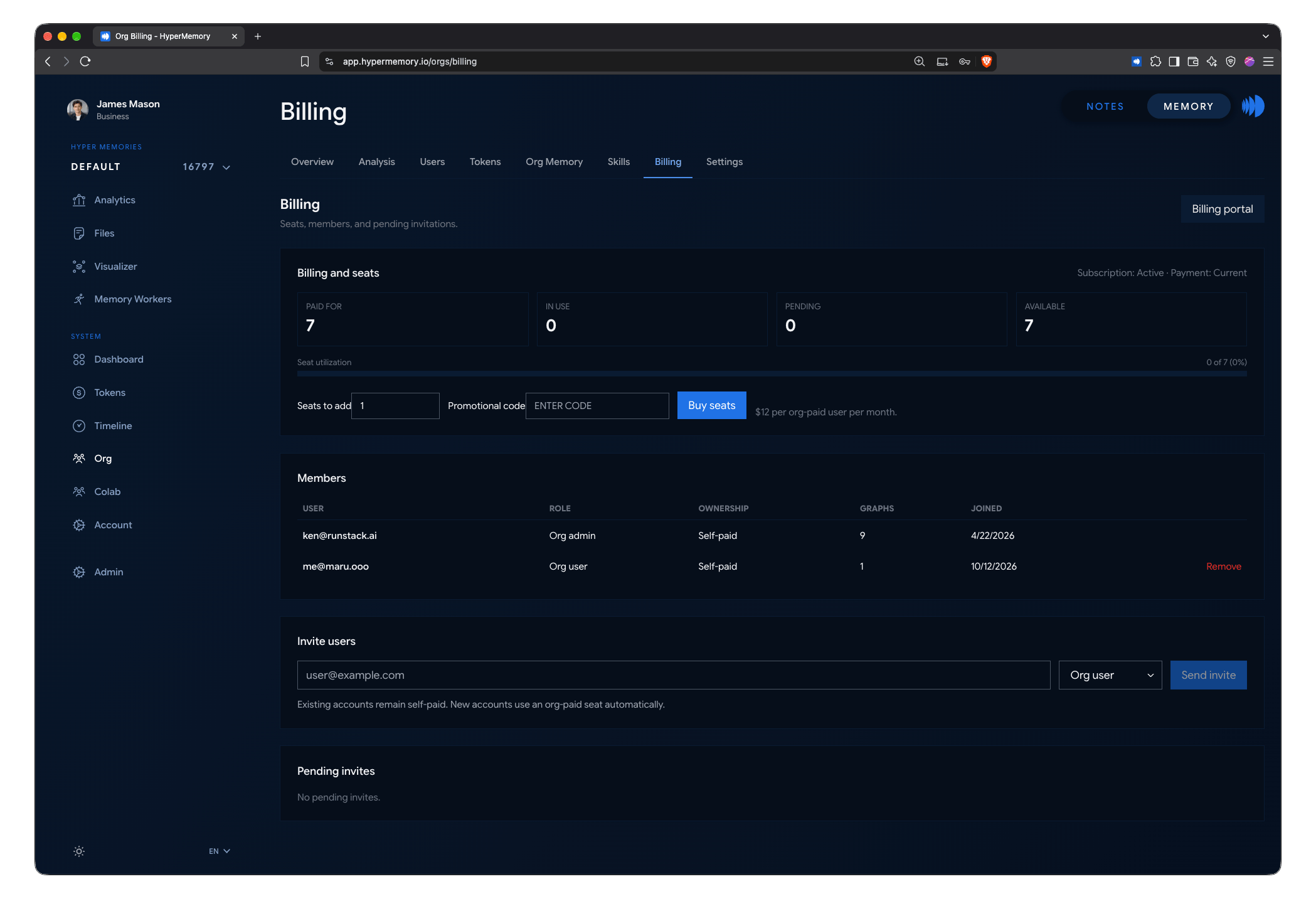
Buy seats, invite people and manage members on Org → Billing.
A seat lets a member use HyperMemory on the organization’s bill, with Business allowances and features. The Business plan includes 3 seats (the owner and 2 members); each extra seat is $49 per user a month.
- People who already have an account keep paying for their own plan when they join.
- People who sign up from an invitation take an organization-paid seat. If no seat is free, the invitation can’t be accepted until you buy more.
Buy and manage extra seats on Org → Billing: choose 1–500 seats, optionally apply a promotion code, and pay with Stripe Checkout. The panel shows seats paid for, in use, pending and available. Billing portal opens Stripe for invoices and payment methods.
Remove a member
On Org → Billing, remove the member from the list. Their access to the organization’s memory ends immediately; their personal memory is untouched. Admins must be changed to org users before they can be removed, and you can’t remove yourself.
Leave an organization
Members leave under Account → Settings → Organizations with Revoke sharing. The owner can’t leave; an admin is first changed to an org user.
While other people still use your organization, you can’t delete your account. Remove the members first. See Account & data.
See what your members use
Org → Users lists each member with the AI clients HyperMemory has seen them use — Claude Desktop, Claude Code, ChatGPT, Codex, Hermes, OpenClaw — and the Claude and ChatGPT accounts they’re linked to. Admins use it with token usage to see where AI spend goes.